Docs · Getting started
A quick tour
The parts of the Vaultdraw window and where to find each feature.
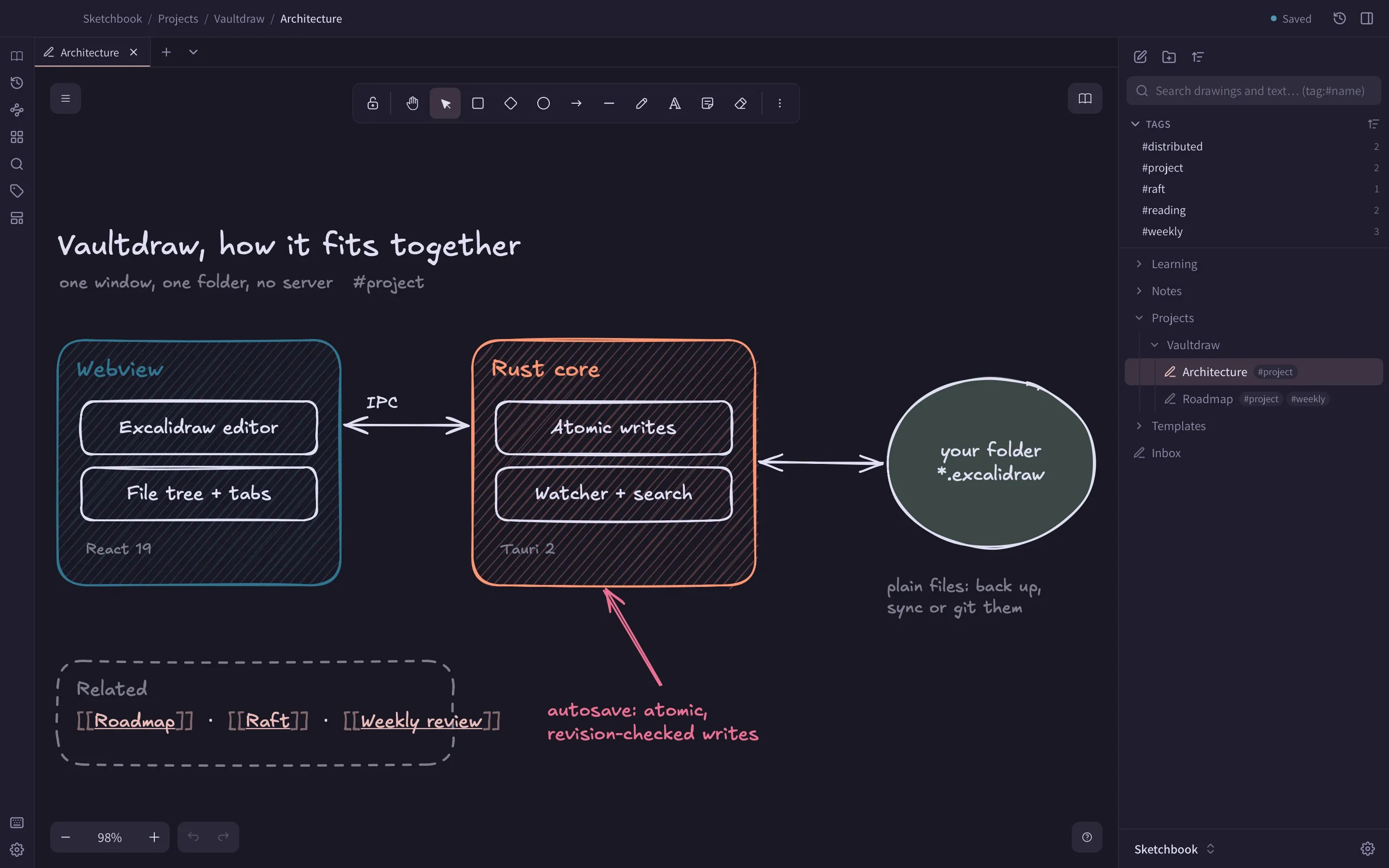
The window
| Part | What it does |
|---|---|
| Navigator | The vault’s file tree. Create, rename, move and trash drawings and folders. Show or hide it with Cmd+\. |
| Tabs | Several open drawings at once. See Tabs. |
| Activity bar | A thin bar of buttons for the main panels: Library, History, Graph view, Gallery, Search, Tags and Templates, plus Hotkeys and Settings. You can reorder it and hide buttons. |
| Header | Visible entry points for History, Graph and Library, plus New from template. |
| Canvas | The Excalidraw editor. Its menu and right-click menu hold the rest, such as page setup and Import file. |
Every button also exists as a command in the palette, so you never have to find it with the mouse. Hover a button to see its key.
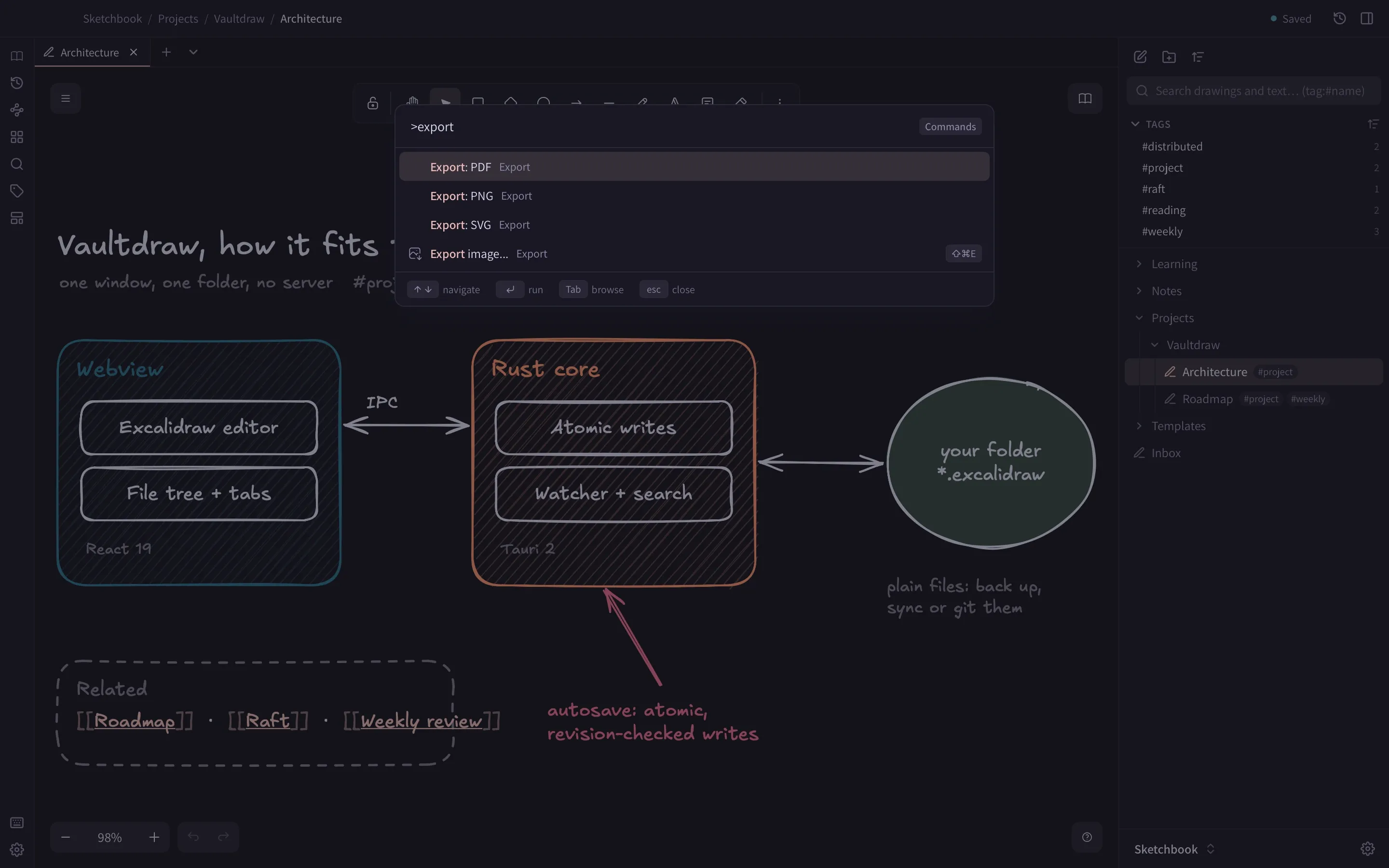
Command palette
Two keys cover most of the app:
- Cmd+P opens any drawing by name.
- Cmd+Shift+P runs any command: themes, modes, settings pages, export, templates, insert actions and more.
Matching is fuzzy, and recently used items come first. See Keyboard.
Settings
Press Cmd+, to open Settings, a page with sections and search. Everything in it is also in a plain-text file you can edit by hand. See Settings.
Home screen and gallery
With no drawing open, the home screen shows your recent drawings with thumbnails. Gallery (Cmd+Option+E) shows a whole folder as a grid of thumbnails. Thumbnails are stored outside your vault, and you can turn them off. Drawings of up to 8,000 elements get one (interface.thumbnail_max_elements, Configuration).
Find, link and look back
- Search (Cmd+Shift+F) looks inside every drawing. See Search.
- Links (
[[Name]]), backlinks and the Graph view connect drawings. See Links and Graph. - History (Cmd+Shift+H) brings back earlier versions. See File history.